CS2 Audio Settings: How to Actually Hear Footsteps Better
Hearing an enemy's footsteps a half second before you see them is often the entire difference between winning a duel and dying to someone you never had a chance against. CS2's default audio settings don't do you any favors here, and most of what actually helps takes about five minutes to set up correctly.

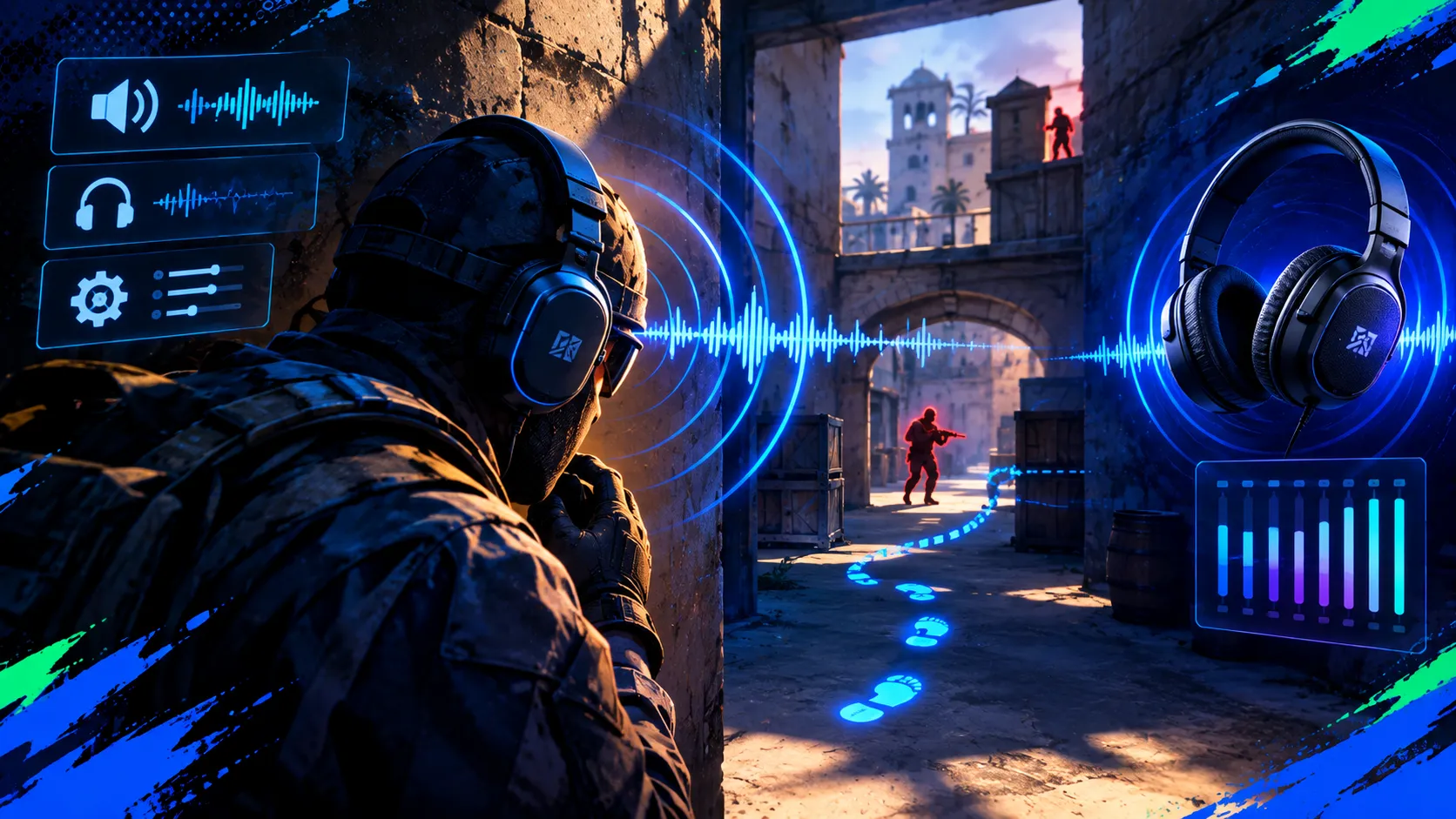
Aim gets all the attention, but a huge amount of what separates a good player from a great one happens before either person pulls up their crosshair.
CS2's Audio Engine Works Differently Than You Might Assume
Source 2 gave Counter-Strike a genuinely overhauled sound system compared to the old engine, built around proper occlusion and propagation rather than simple line-of-sight audio. Sound now travels through openings and around corners in a way that's meant to model how it would actually move through a real space, and it gets muffled by solid surfaces along the way instead of just passing straight through walls like it used to. That's a meaningful shift, since positioning now depends more on understanding how sound actually travels around a specific map rather than treating every noise as if it came straight at you in a clean line.
The Headphone Choice That Actually Matters
Stereo headphones remain the clear consensus pick for competitive play over any virtual surround mode, including 5.1, 7.1, or headset-branded surround processing. Virtual surround modes tend to add latency and distort CS2's own directional cues rather than improving them, which runs counter to what most players assume going in. If you're choosing between headphone types specifically, closed-back models isolate outside noise better and keep your microphone from picking up game audio, while open-back models tend to offer a wider, more natural soundstage at the cost of some isolation. Neither is objectively wrong, it comes down to whether you value isolation or soundstage more for your specific setup.
The EQ Profile Almost Everyone Lands On
Among the in-game sound profile options, Crisp is the setting nearly every serious guide and player converges on. It emphasizes the higher frequency range where footsteps, reloads, and small mechanical sounds like a pin being pulled actually live, while cutting some of the low end that tends to muddy things up. If Crisp sounds too sharp or fatiguing on your specific headphones, Natural is the reasonable fallback that still keeps things relatively balanced. Smooth is generally worth avoiding for competitive play specifically, since it softens exactly the frequency range where the sounds you're trying to catch actually sit.
Volume Levels Worth Actually Setting Correctly
A common recommendation is dropping your in-game master volume down to somewhere between 20 and 50 percent while raising your system or Windows volume instead. That combination tends to preserve more dynamic range, meaning loud sounds like gunfire don't clip or overwhelm everything else, while quiet sounds like a distant footstep don't get lost entirely. Music sliders, both menu music and any in-match music, are worth turning all the way down since they add nothing useful and can genuinely mask audio cues you'd otherwise catch. If you want to keep one thing, the ten second bomb timer warning tone is the one exception most players leave on. Voice chat volume can also be adjusted directly through the console with the command snd_voipvolume, set to whatever value keeps teammates audible without drowning out game audio, somewhere around 0.6 is a common starting point.
A Windows-Level Setting With a Real Tradeoff
Windows has a built in audio enhancement called Loudness Equalization, found by right clicking your playback device in Windows Sound settings, opening Properties, and checking the Enhancements tab. It functions like a compressor, boosting quiet sounds while pulling down louder ones, which can make a distant footstep noticeably easier to hear. The tradeoff is real, though. Because it boosts quiet sounds regardless of how far away they actually are, it can flatten your sense of distance, making something far away sound closer than it is. Whether that's worth it depends on what you personally struggle with more, missing quiet footsteps entirely or misjudging how close an enemy actually is.
The Setting Combination Most Guides Skip
A mistake that shows up constantly, even in otherwise solid setups, is running third party spatial audio processing like Windows Sonic or Dolby Atmos at the same time as CS2's own built in spatial audio. These systems don't stack cleanly. They compete for control over the same directional information, and the result is usually less accurate positioning than either system would provide on its own. The fix is simple once you know to look for it: disable any Windows-level or headset-level virtual surround processing entirely and let CS2 handle spatial audio on its own without interference.
Getting the Basics Right Matters More Than Chasing Every Tweak
None of these settings substitute for map knowledge or just paying attention, but a genuinely well configured audio setup gives you real information earlier and more reliably than the default configuration most players never touch after their first install. Five minutes spent here tends to pay off far more consistently than most graphics settings changes do.
Sharpen a Different Kind of Awareness
Picking up on small details, whether it's a footstep pattern or a pricing quirk in the skin market, comes down to the same kind of attention. If you want to test that instinct somewhere completely different from a settings menu, the mini games on CS Guess are built around exactly that, testing your knowledge of prices, rarity, and this game's history, with free perks for playing well.
Head over to CS Guess and see how sharp your attention to detail really is.